Deciding to permanently remove a YouTube channel or its underlying Brand Account is a significant step, carrying implications far beyond just your video content. Whether you're streamlining your online presence, tidying up old projects, or shutting down a defunct business channel, understanding the profound differences between deleting a standard YouTube channel and a channel linked to a Brand Account is crucial. This guide walks you through each process with clarity, ensuring you make an informed decision and avoid any unwelcome surprises.
At a Glance: What You Need to Know
- Standard YouTube Channel Deletion: Removes only your YouTube content (videos, comments, playlists, subscribers, history). Your core Google account (Gmail, Drive, etc.) remains untouched.
- Brand YouTube Channel Deletion: This is a much bigger deal. It deletes the entire Brand Google Account associated with the channel, impacting any other Google services (like Google Photos, Google Drive, Google My Business listings) linked to that specific Brand Account.
- Irreversibility: Once a standard YouTube channel is deleted, it's generally gone forever.
- Limited Recovery: A Brand YouTube channel might be recoverable (videos and playlists only, not comments or replies), but it's not guaranteed and can be disruptive.
- The Safer Alternative: If you're unsure about permanent deletion, consider "hiding" your channel first. This makes all your content private but keeps it accessible to you.
Understanding Your YouTube Presence: Personal vs. Brand
Before you even think about hitting the delete button, it’s vital to know which type of YouTube channel you actually have. This isn't just a technical detail; it determines the scope of what gets deleted and what remains.
Think of it this way:
- A Standard (Personal) YouTube Channel is directly tied to your personal Google Account. When you create a YouTube channel without specifically opting for a Brand Account, this is what you get. It uses your Google Account name and profile picture. Deleting this only impacts your YouTube presence.
- A YouTube Channel Linked to a Brand Account is exactly what it sounds like. Brand Accounts are designed for businesses, organizations, and creators who want their YouTube presence to be separate from their personal Google Account. They allow multiple people to manage the channel, and the channel can have a different name and identity from your personal Google Account. The key here is that the YouTube channel is merely one service connected to a larger Brand Google Account, which can also host Google Photos, Google Drive files, and potentially other Google services.
The crucial takeaway? Deleting a personal YouTube channel is like removing one app from your phone. Deleting a Brand YouTube channel is like deleting an entire user profile, which then takes all associated apps and data with it.
Option A: Deleting a Standard (Personal) YouTube Channel
Sometimes, you just want to wipe the slate clean on your personal YouTube endeavors. Maybe old gaming videos, cringe-worthy vlogs, or simply an inactive channel that's no longer relevant. The good news is that deleting a standard YouTube channel is relatively straightforward and primarily affects only your YouTube content.
What Happens When You Delete a Standard YouTube Channel?
When you choose to permanently delete a regular YouTube channel:
- All Your YouTube Content is Gone: This includes every video you've ever uploaded, every comment you've posted, all your custom playlists, your subscriber list, and your watch and search history. This content is permanently removed and cannot be recovered.
- Your Google Account Remains Intact: Crucially, deleting a standard YouTube channel does not affect your Google Account itself. Services like Gmail, Google Drive, Google Photos, Google Calendar, and any other Google service linked to your primary Google Account will continue to function normally. You'll simply no longer have a YouTube channel associated with it.
- Paid Subscriptions: Any paid subscriptions you own through YouTube (like YouTube Premium or channel memberships) will be canceled, and you'll typically receive a refund for any unused portion, though it's wise to check YouTube's specific policies at the time.
Step-by-Step: Deleting Your Standard YouTube Channel
Ready to proceed? Here's how to permanently remove your personal YouTube channel from a desktop browser. The process is similar on mobile if you access the desktop site.
- Head to YouTube's Website: Open your web browser and navigate to www.youtube.com. Make sure you're logged into the Google Account that owns the channel you wish to delete.
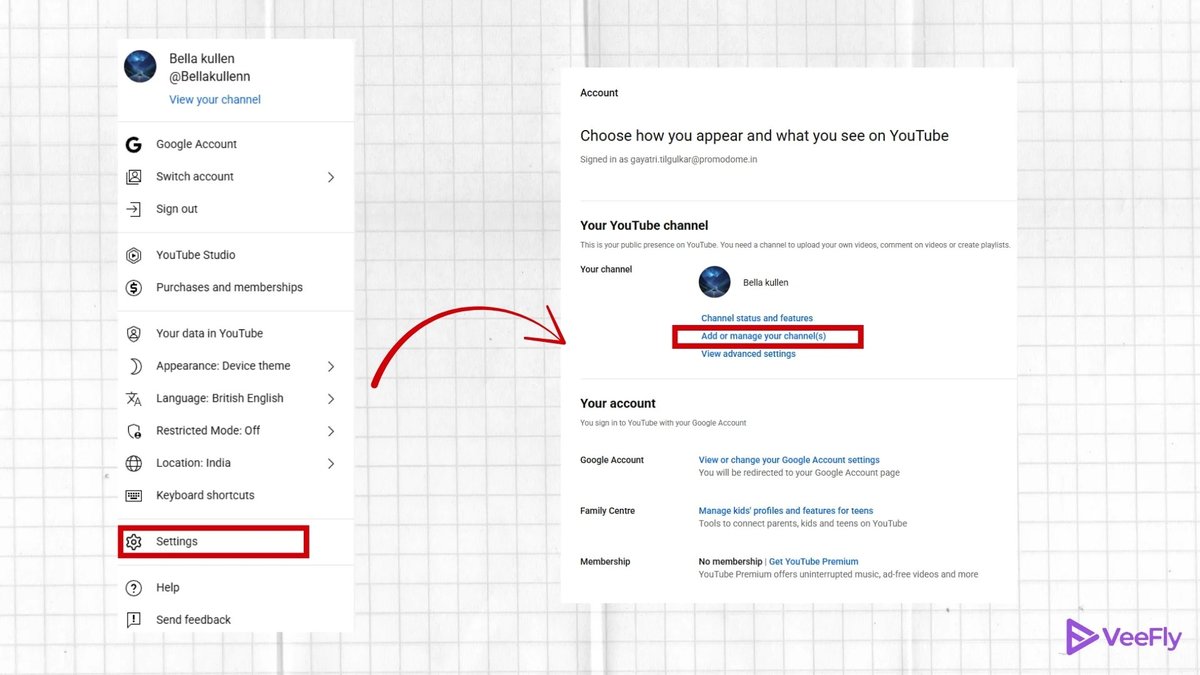
- Access Your Settings: In the top-right corner, click on your profile picture (your avatar). From the dropdown menu, select "Settings".
- Navigate to Advanced Settings: On the left sidebar of the Settings page, click on "Advanced settings".
- Initiate Deletion: You should see an option labeled "Delete channel". Click this.
- Self-correction moment: If you don't see "Delete channel" here, it's a strong indicator that you might be trying to delete a channel linked to a Brand Account, which follows a different process.
- Verify Your Identity: For security, Google will prompt you to enter your Google account password again. This ensures that only the account owner can make such a permanent change.
- Confirm Permanent Deletion: On the next screen, you'll be given two options: "I want to hide my content" or "I want to permanently delete my content." Select "I want to permanently delete my content".
- Acknowledge the Impact: Carefully read the information provided. You'll need to enable checkboxes confirming that you understand:
- "The following will be permanently deleted" (lists videos, playlists, comments, messages, subscriptions).
- "Any paid subscriptions you own will be canceled."
- Final Confirmation: Click the "Delete my channel" button. A final pop-up will ask you to confirm by typing your channel name.
- It's Done: Your YouTube channel and all its associated content will begin the process of permanent deletion. This might take a few moments or even a few days for all content to disappear from YouTube's servers and search results.
Remember, once this process is complete, there's no going back. YouTube typically cannot recover a standard channel after it has been deleted. For a complete guide on removing any YouTube presence, understanding all your options is key, and sometimes, a simpler solution might be better than outright deletion For a complete guide on removing any YouTube presence.
Option B: Deleting a YouTube Channel Linked to a Brand Account
This is where things get considerably more impactful. Deleting a YouTube channel that's tied to a Brand Account isn't just deleting a channel; it's deleting the entire Brand Google Account that hosts it. This distinction is critical because it affects far more than just your YouTube presence.
What Happens When You Delete a Brand YouTube Channel?
When you delete a YouTube channel linked to a Brand Account:
- The Entire Brand Google Account is Deleted: This is the most significant consequence. Any other Google services linked to that specific Brand Account will also be deleted. This could include:
- Google Photos: All photos and videos stored under that Brand Account.
- Google Drive: All files and documents stored in that Brand Account's Drive.
- Google My Business listings: If your business profile was managed under this Brand Account.
- Any other Google-managed content associated with that Brand Account.
- Loss of Access for Managers: If multiple individuals managed the Brand Account, they will all lose access to it and any associated services.
- Potential Limited Recovery (YouTube Only): Unlike personal channels, you might be able to recover a branded YouTube channel, but this is a limited recovery. It typically restores videos and playlists, but not comments, replies, messages, or watch history. This recovery process isn't instant or guaranteed and can be disruptive, potentially reordering content or affecting playlists.
- 7-Day Ownership Requirement: You must have owned the Brand Account for more than 7 days to initiate its deletion. This is a protective measure to prevent quick, accidental deletions by new owners.
Before proceeding, ensure you have backed up any essential data from Google Photos, Google Drive, or other services connected to that specific Brand Account.
Step-by-Step: Deleting Your Brand YouTube Channel and Account
This process is more involved due to the broader implications. Take your time with each step.
- Access YouTube and Switch Accounts:
- Open your web browser and go to www.youtube.com.
- Click on your profile icon in the top-right corner.
- Select "Switch account" from the dropdown menu.
- Crucially, select the specific Brand Account (and its associated YouTube channel) that you wish to delete. Double-check that you've picked the correct one.
- Go to YouTube Settings:
- Once you're switched into the correct Brand Account, click your profile icon again (top-right).
- Select "Settings".
- Find "Add or Remove Managers":
- In the YouTube Settings menu, look for "Add or remove Managers". Click this option.
- Self-correction moment: If you don't see this option, you are likely not in a Brand Account. Go back to step 1 and ensure you've switched to the correct Brand Account.
- Locate the "Delete account" Button:
- Clicking "Add or remove Managers" will take you to a new page managing your Brand Account details.
- You'll see a section titled "Delete your Brand Account." Underneath this, click the "Delete account" button. This button initiates the deletion of the entire Brand Google Account, not just the YouTube channel.
- Verify Your Identity:
- Google will prompt you to enter your Google password for the account that owns the Brand Account. This is a security measure.
- Review and Confirm Deletion:
- This is the most critical step. Carefully scroll down and read all the information about what will be permanently deleted. This page will explicitly list the services that will be affected (e.g., YouTube, Google Photos, Google Drive, Google My Business).
- Enable the required checkboxes:
- "Yes, I acknowledge that I am still responsible for any charges incurred due to any pending financial transaction." (This is important if you have any active subscriptions or services.)
- "Yes, I want to permanently delete this Google Account and all its data."
- Finalize Deletion: Click the "Delete Account" button.
Once you click that button, the Brand Google Account (and everything linked to it, including your YouTube channel) will begin the deletion process. It can take some time for all data to be completely removed from Google's systems.
The "Hide My Channel" Alternative: A Safer Bet?
For many users, permanent deletion might feel too drastic, especially if you're unsure about the future or if the content holds sentimental value. This is where "hiding" your YouTube channel comes in as a valuable, less permanent alternative.
What Does Hiding Your Channel Do?
When you choose to hide your YouTube channel:
- Content Becomes Private: All your videos, playlists, likes, posts, and comments are set to "Private." This means they are no longer visible to the public.
- Subscribers Disappear: Your channel name and subscriber count will no longer be publicly visible. Your subscribers will also be unsubscribed from your channel.
- Channel Remains Intact for You: You (the owner) can still see and access all your content in YouTube Studio. This allows you to review it, download it, or decide to make it public again at a later date.
- Comments and Replies: Your comments and replies on other channels will be permanently deleted. This is one aspect that hiding does make permanent.
- No Impact on Google Account: Hiding your channel, whether it's a personal or Brand Account channel, does not affect your core Google Account or the Brand Account itself. Only the YouTube channel's public visibility is altered.
When to Consider Hiding Your Channel:
- Uncertainty: You're not 100% sure you want to delete everything forever.
- Future Plans: You might want to reactivate the channel or reuse some of its content later.
- Temporary Break: You need a break from YouTube but don't want to lose all your work.
- Content Archiving: You want to keep your content in an accessible private archive within YouTube.
Hiding a channel is reversible (except for comments/replies), offering a safety net that permanent deletion does not. If you're on the fence, this is often the recommended first step.
Before You Click "Delete": Essential Preparations & Considerations
Deleting a YouTube channel or its linked Brand Account is a one-way street for most data. Before you commit, take a moment to consider these critical points.
1. Back Up Everything You Value
- YouTube Videos: If there are any videos you want to keep copies of, download them from YouTube Studio before initiating deletion. You can download your own videos in up to 720p resolution directly from YouTube Studio.
- Google Drive/Photos (for Brand Accounts): For Brand Accounts, download any critical files, documents, photos, or videos from Google Drive and Google Photos. Remember, deleting the Brand Account means deleting all data associated with it across all Google services.
- Other Data: Think about any other data or assets tied to the account – channel art, descriptions, analytics data you want to save.
2. Notify Your Audience and Managers (if applicable)
- For Active Channels: If you have an active subscriber base, consider uploading a final video or posting a community update (if your channel supports it) explaining your decision and where they might find you next. This provides closure for your community.
- For Brand Accounts with Managers: Inform all managers or team members who have access to the Brand Account about the impending deletion. Ensure they've saved any necessary data or transitioned responsibilities.
3. Review Linked Services and Monetization
- AdSense: If your channel was monetized through Google AdSense, ensure your final payments have been processed and any outstanding issues are resolved. Deleting the channel won't automatically close your AdSense account, but it will stop future earnings from that channel.
- Third-Party Integrations: Disconnect your YouTube channel from any third-party websites, apps, or services (e.g., stream overlays, social media schedulers, Patreon). These services might still try to access the channel or display outdated information.
- Paid Subscriptions: Double-check any paid channel memberships or YouTube Premium subscriptions tied to the channel being deleted. While YouTube usually cancels them, it's good practice to verify to avoid unexpected charges.
4. Confirm the Channel Type (Again!)
This cannot be stressed enough. The consequences of deleting a personal channel versus a Brand Account channel are vastly different.
- Personal Channel Check: Does your channel use your personal Google Account name and profile picture? Do you only see "Delete channel" under "Advanced settings"? You likely have a personal channel.
- Brand Account Channel Check: Does your channel have a name different from your personal Google Account? Do you see "Add or remove Managers" in settings? Does it have multiple managers? Then it's a Brand Account.
Taking these preparatory steps can save you significant headaches and data loss in the long run.
Frequently Asked Questions About YouTube Channel Deletion
Navigating the nuances of channel deletion can bring up several questions. Here are some common ones, clarified:
Can I recover a deleted YouTube channel?
- Standard (Personal) YouTube Channel: Generally, no. Once a standard YouTube channel is deleted, it's considered permanently gone. Contacting YouTube support may not guarantee restoration, as the data is often purged quickly.
- YouTube Channel Linked to a Brand Account: Possibly. Brand YouTube channels may be recoverable, but it's not a complete restoration. Typically, only videos and playlists are restored, while comments, replies, messages, and watch history are not. The recovery process can be complex and may still result in content disruption. It's always better to consider deletion irreversible.
What happens to my comments and replies on other videos after deletion?
- Standard (Personal) YouTube Channel: All comments and replies you've ever made on other YouTube videos will be permanently removed when your channel is deleted.
- YouTube Channel Linked to a Brand Account: Similarly, all comments and replies made by a Brand Account channel will be permanently removed upon its deletion.
- Hiding a Channel: If you hide your channel instead, any comments and replies you've made on other videos will be permanently deleted. This is one of the few irreversible actions of hiding a channel.
Does deleting a YouTube channel delete my Gmail account?
- Standard (Personal) YouTube Channel: No. Deleting a standard YouTube channel does not delete your Google Account or your Gmail account. Your email, Google Drive, and other services remain fully functional.
- YouTube Channel Linked to a Brand Account: Yes, potentially. Deleting a YouTube channel linked to a Brand Account does delete the entire Brand Google Account itself. If that Brand Account had a unique Gmail address associated with it, that Gmail account would also be deleted. However, this is distinct from your personal Google Account's Gmail.
Can others still see my old videos after deletion?
No. Once your YouTube channel (or the Brand Account it's linked to) is successfully deleted, your videos will no longer be publicly accessible or searchable on YouTube. It may take some time (a few hours to a few days) for all traces to be removed from YouTube's system and search engine caches, but the content will be in the process of permanent removal.
What happens to my subscribers?
When you delete your YouTube channel, your subscribers are unsubscribed, and your subscriber count will revert to zero or the previous count if you had multiple channels. If you hide your channel, your subscribers are also unsubscribed, and your subscriber count becomes private.
Your Final Decision: Weighing the Options
The decision to delete a YouTube presence is rarely simple, particularly given the distinction between personal channels and those tied to Brand Accounts. It's an act of digital decluttering with lasting consequences.
- If you're looking to simply remove old content or an inactive personal channel without impacting your core Google services, then deleting a standard YouTube channel is the path for you. Just remember that what's gone is gone.
- If you manage a business, organization, or a creative persona through a Brand Account and wish to fully dismantle that specific digital identity across Google's ecosystem, then deleting the YouTube channel linked to a Brand Account is the necessary, albeit more extensive, step. Be acutely aware of the deletion's ripple effect on Google Photos, Drive, and any other Brand Account services.
- When in doubt, hide it. The "hide my channel" option provides a robust safety net, allowing you to remove your public presence while retaining access to your content for future review or potential re-launch. It's the less committal choice that allows for reflection without the pressure of permanent data loss.
Ultimately, your digital footprint is yours to control. By understanding the tools available and the distinct impacts of each deletion method, you can confidently make the choice that best aligns with your goals, ensuring that your online presence truly reflects your intentions.