Deciding what to do with your YouTube channel is a significant step, whether you're looking for a fresh start, privacy, or to completely step away. This guide is your ultimate resource, breaking down the options of deleting or hiding your channel, ensuring you make an informed decision that aligns with your goals. We'll walk you through the precise steps and crucial considerations, helping you navigate YouTube's platform with confidence.
Deleting vs. Hiding: Understanding Your Options for Your YouTube Channel
Before you take any action, it's vital to understand the key differences between deleting and hiding your YouTube channel. Deleting is a permanent, irreversible action that erases all your content, including videos, comments, and subscriber data. Hiding, on the other hand, offers a temporary solution, making your content private while keeping your channel dormant for a potential return. Each path has distinct implications, and knowing them upfront will guide you to the right choice. For a deep dive into what each option truly entails, explore Understanding the Difference: Deleting vs.
Essential Steps Before You Act: Preparing Your Channel for Change
Whether you choose to hide or permanently delete your YouTube channel, preparation is key. Deletion is irreversible, meaning once your content is gone, it cannot be recovered. This makes backing up any valuable videos, playlists, or comments an absolute must if you wish to retain them. Additionally, consider unlinking your YouTube channel from any third-party applications or services that might be connected.
It's also a good practice to inform your audience in advance if you plan a permanent departure, offering them a heads-up and a chance to say goodbye. For a comprehensive checklist and more details on how to safeguard your content and understand the implications, be sure to Prepare your YouTube channel for deletion.
Permanently Deleting Your YouTube Channel
If you've decided to permanently remove your YouTube presence, the process must be done through a desktop or mobile browser accessing YouTube Studio, as the YouTube mobile app typically doesn't support this function. This action will erase all associated content, subscriptions, and history irrevocably.
Here’s how to permanently delete your personal YouTube channel:
- Sign In to YouTube Studio: Open your preferred desktop or mobile browser and navigate to YouTube Studio. Ensure you are logged into the exact Google account linked to the YouTube channel you wish to delete.
- Access Advanced Settings: In the left sidebar menu, click on "Settings." A pop-up window will appear. From there, select "Channel," then click on "Advanced Settings."
- Initiate Content Removal: Scroll down to the bottom of the "Advanced Settings" page and find the "Remove YouTube Content" option. You might be prompted to re-enter your login credentials for security verification.
- Confirm Permanent Deletion: On the next screen, you'll see two options. Select "I want to permanently delete my content."
- Acknowledge Consequences: A box will expand, listing all the content that will be permanently removed. This includes all your videos, comments, playlists, subscriptions, likes, gift settings, and your search and watch history. Check the box to confirm your understanding.
- (Optional) Cancel Paid Subscriptions: If applicable, check the second box to cancel any active paid subscriptions, such as YouTube Premium, associated with the channel.
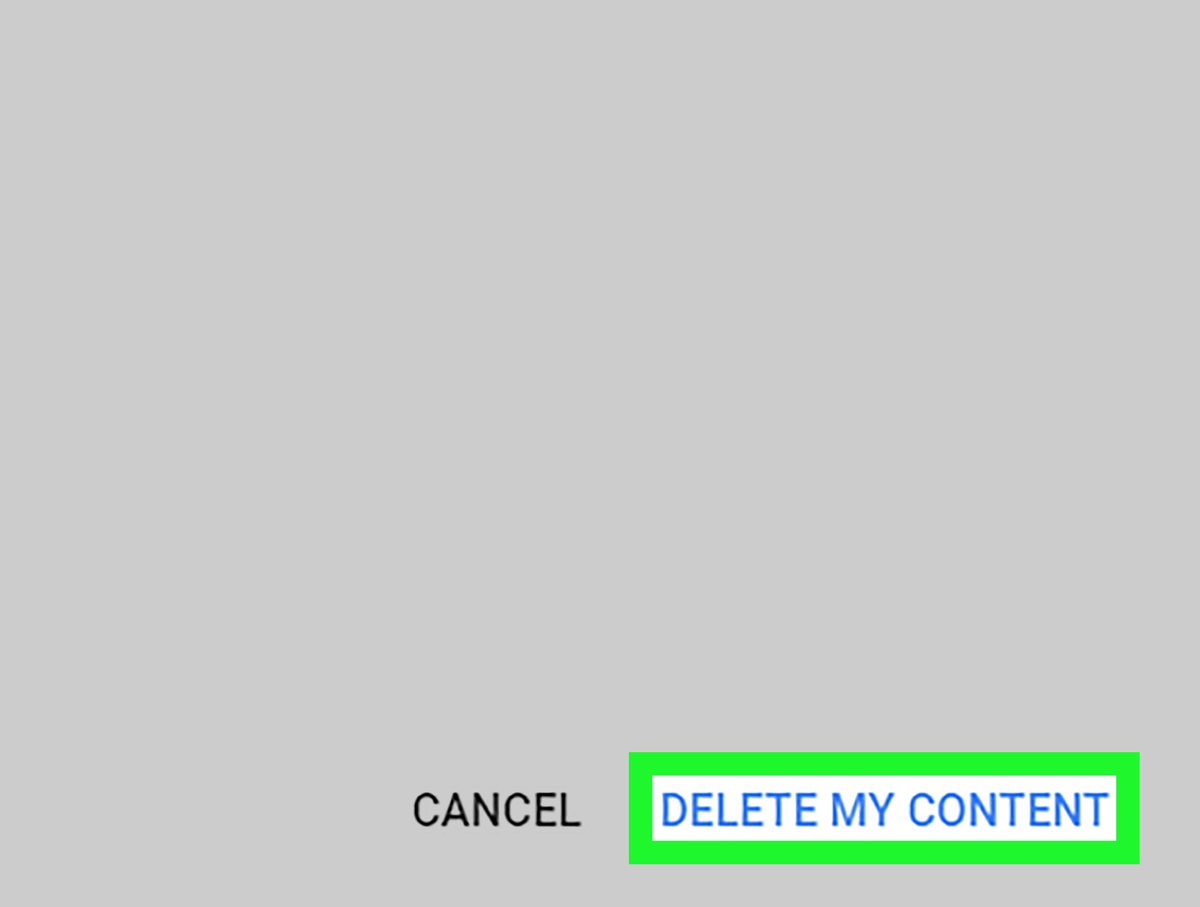
- Finalize Deletion: Click "Delete my content." The process may take some time to complete, and changes might not be immediate.
For a more detailed, step-by-step walkthrough tailored specifically to personal channels, our dedicated guide can help you Delete your YouTube channel How to.
What Happens After Deletion?
The consequences of a permanent deletion are far-reaching. All your videos, playlists, comments, and other channel-related content are gone forever. Your subscribers will automatically be unsubscribed, and your channel name and URL will become available for others to use. This action is final, and content cannot be recovered once the deletion process is complete. To fully grasp the impact of this irreversible decision, including how it affects your content and community, learn more about Berikut beberapa pilihan: What happens to.
Deleting a YouTube Brand Account
If your YouTube channel is linked to a Brand Account, the deletion process differs slightly from that of a personal channel. Brand Accounts are often used by businesses or organizations, allowing multiple people to manage the channel. The key difference lies in accessing the Brand Account settings within your Google Account. For precise instructions and to understand the specific steps involved in removing a Brand Account, we recommend consulting our detailed guide on how to Delete your YouTube Brand Account.
Temporarily Hiding Your YouTube Channel
Perhaps a permanent deletion feels too drastic, and you simply need a break or wish to make your content private for a while. Hiding your YouTube channel is the perfect temporary solution. When hidden, your videos, playlists, and subscribers become private, effectively taking your channel offline without permanent loss.
Here’s how to hide your YouTube channel:
- Sign In to YouTube Studio: Use a desktop or mobile browser to access YouTube Studio and log into the correct Google account.
- Navigate to Settings: Click "Settings" in the left sidebar, then "Channel," and finally "Advanced Settings."
- Access Content Removal Options: Scroll down the "Advanced Settings" page and select "Remove YouTube Content." You may need to verify your login information again.
- Confirm Hiding: On the next screen, choose the option "I want to hide my channel."
- Acknowledge Hidden Content: A box will appear, detailing what will be hidden, including your channel name, likes, subscriptions, subscribers, and comments. Check the box to confirm.
- (Optional) Keep Google App Data: You can choose to check the second box to keep your data on other Google apps and properties if you wish.
- Finalize Hiding: Click "Hide my channel." It can take up to a week for these changes to fully reflect across the platform.
Re-enabling a Hidden Channel
Should you decide to return to YouTube, restoring your hidden channel is straightforward. Simply sign in to YouTube with the associated Google account, click on your profile picture, select "Create a channel," and then fill out the form. Your previously hidden content and settings will be restored.
Considering the Bigger Picture: Deleting Your Entire Google Account
It's crucial to understand that deleting your YouTube channel does not delete your entire Google account. If your intention is to completely sever ties with Google's ecosystem, including Gmail, Google Drive, Google Photos, and all other associated data, you'll need to delete your Google Account itself. This is a far more sweeping action with significant consequences across all Google services.
To delete your entire Google Account:
- Sign In to Your Google Account: Go to your Google Account settings via a browser.
- Manage Account: Click on your profile picture, then select "Manage your Google Account."
- Navigate to Data & Privacy: In the left navigation panel, click on "Data & privacy" (formerly "Data & Personalization").
- Delete Account: Scroll down to the "Your data and privacy options" section and look for "More options." Select "Delete your Google Account."
- Verify & Confirm: Follow the on-screen prompts, which will require verification of your identity, and carefully review all the information presented regarding what will be deleted.
- Final Confirmation: After reviewing, click "Delete Account."
- Confirmation Email: You will receive a confirmation email indicating that your account has been deleted.
Remember, this action is permanent and removes all associated data across all Google services.
Beyond Deletion: Exploring Alternatives
Sometimes, the best solution isn't deletion at all. If you're grappling with your channel's future, consider these alternatives:
- Make Individual Videos Private or Unlisted: Instead of deleting everything, you can change the privacy settings for specific videos, making them accessible only to you (private) or anyone with the link (unlisted).
- Delete Specific Videos Only: If only a few pieces of content are problematic, you can simply delete those individual videos while keeping your channel active.
- Create a New YouTube Channel: For a complete brand refresh or a new content direction, creating a new channel might be a better fit than deleting your old one.
- Take a Break: Sometimes, a hiatus from uploading or engaging with content is all you need to regain perspective. Your channel can simply remain dormant without any permanent changes.
Managing YouTube Premium & Other Memberships
If you have a YouTube Premium membership or any other paid subscriptions tied to your YouTube channel, deleting or hiding your channel does not automatically cancel these. You must cancel them separately to avoid continued billing.
To cancel a single YouTube Premium plan:
- Go to the YouTube website.
- Click your profile picture.
- Select "Purchases and memberships."
- Click "Manage membership" next to your Premium plan.
- Select "Cancel."
If you are part of a YouTube Premium family group and wish to leave it: - Access your membership settings.
- Click "Edit" next to "Family sharing settings."
- Select "Leave family group."
Ensuring these are managed proactively will prevent any unexpected charges after you've made your decision regarding your channel.
Ultimately, whether you choose to permanently delete, temporarily hide, or explore other alternatives for your YouTube channel, understanding each option empowers you to make the choice that's right for you. Take your time, weigh the consequences, and confidently steer your digital presence in the direction you desire.